
Projects & Time Tracking
Reading your Dashboard statistics
What the Total Time, Billed, Paid, and Active Projects cards mean, why Billed shows a percentage, and how to read the Time Tracking Chart.
Last updated
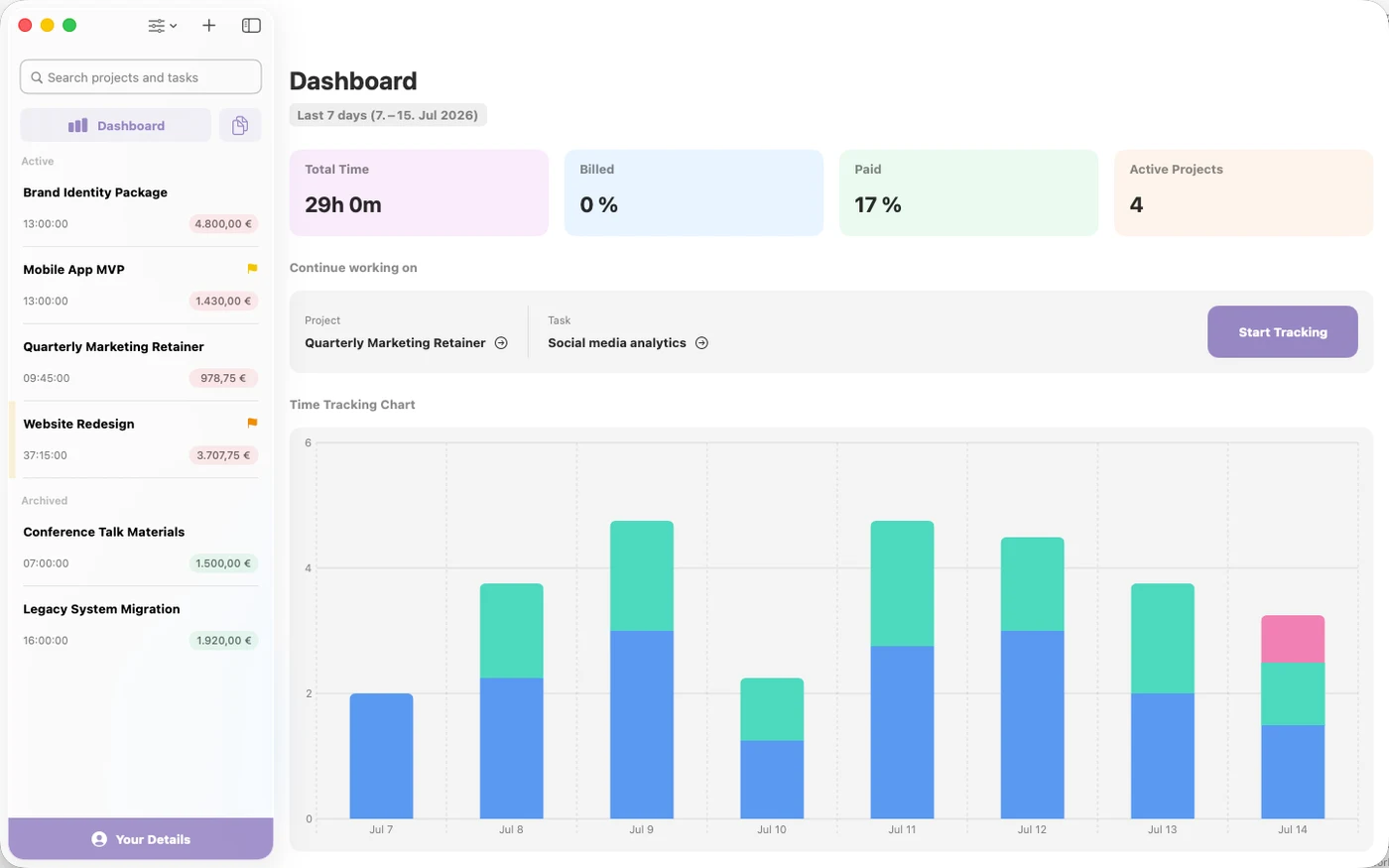
The Dashboard gives you a quick read on how much you've worked and how much of it has turned into money. Open it with the Dashboard button at the top of the Projects sidebar, or choose View → Show Dashboard (Shift-Cmd-D). Selecting a project in the sidebar hides the Dashboard again.
Choosing a time range
Click the date-range button under the title to cycle through Last 7 days, This week, Last week, and All time. The button shows the exact date range, and every stat card and the chart follow it.
The stat cards
- Total Time: the hours you tracked in the selected range, shown like "5h 30m".
- Billed and Paid: by default these show a percentage of what you earned in the range, not a currency amount. This trips people up: "68%" means 68% of your earnings in the range are billed, not 68 of anything monetary. Click either card to toggle it to a currency amount and back.
- Active Projects: the number of non-archived projects. Archived projects are excluded here (though they still count toward the free plan's 10-project limit; see Archiving vs. deleting projects).
The Billed and Paid figures come straight from your billing states, so if the numbers look off, check for tasks still sitting on the wrong state, as explained in how billing states work.
Continue working on
This card shows the last task you tracked, with links to its Project and Task and a Start Tracking / Stop Tracking button. It's the fastest way to resume yesterday's work without digging through the sidebar.
The Time Tracking Chart
The Time Tracking Chart is a stacked bar chart of your tracked hours per day (per month when the range is All time), with each task in its own color. Hover a bar to see a tooltip with the day's total, the top 3 tasks, and "+N more" if additional tasks contributed.
If the numbers look wrong
- Check the time range first: This week and Last 7 days are different windows.
- A running timer you forgot about inflates Total Time; stop it from the task or the Continue working on card (see Tracking time).
- Remember the Billed/Paid percentage-vs-currency toggle before comparing numbers to your invoices.