
Customers
Adding and managing customers
How to add, edit, and delete customers in the Customer Management window, and what to know before deleting one.
Last updated
Customers are the clients you bill. Every project can be linked to one customer, and that customer's details appear on the invoices and timesheets you generate for the project. This article covers creating, editing, and deleting customers.
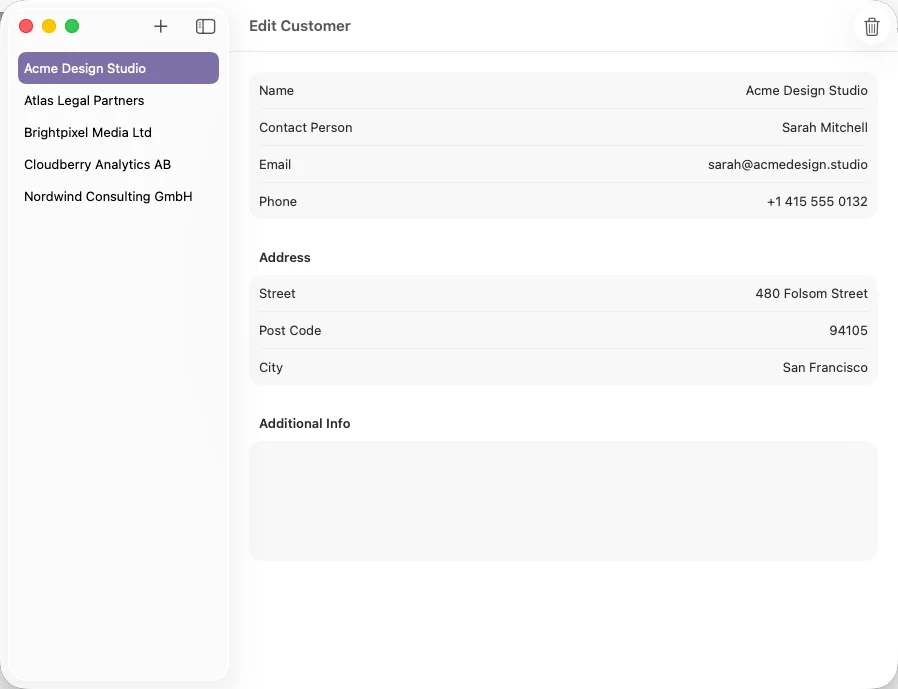
Opening Customer Management
Choose View → Customer Management in the menu bar, or press Shift-Cmd-M. The Customer Management window shows a Customers list on the left and an editor on the right. If the list is empty, you'll see No Customers Yet with the hint Click (+) to add your first customer.
You can also reach this window from any project: the customer picker in the project's footer has a Manage Customers link at the bottom.
Adding a customer
- Click the + (Add Customer) button in the toolbar. A customer named New Customer is created and selected immediately.
- Replace the name, then fill in Contact Person, Email, and Phone as needed.
- In the Address section, enter Street (it can span multiple lines), Post Code, and City. TimeBill composes the printed address as the street lines followed by "post code city".
- Use Additional Info for free-form notes. This text is also printed in the client block of invoices, so keep it client-appropriate.
There is no Save button in this window: edits apply directly as you type, and closing the window keeps everything. One side effect: if you click + and then close the window without renaming, the placeholder New Customer stays in your list. Just select and rename or delete it.
If you have electronic invoicing enabled, the editor also shows an Electronic Invoicing section with buyer-side fields (see customer fields for electronic invoicing).
What a customer record does not contain
There is no per-customer hourly rate, currency, payment terms, or language. Rates live on your projects and tasks, and the invoice currency is chosen when you generate an invoice.
Deleting a customer
Select the customer in the list and click the trash button (Remove Customer) in the toolbar.
Be careful: deletion happens immediately, with no confirmation dialog and no undo. The customer is removed from every project that referenced it, so those projects will need a customer assigned again before you can invoice them.
Two reassuring details:
- Deleting a customer never touches your projects, tasks, or time entries; only the customer link is cleared.
- Invoices already archived in the Invoice Vault keep the client name they were issued with. Deleting or renaming a customer never changes existing archived invoices.
If you only want to detach a customer from a single project, don't delete the record — un-assign it in the project instead, as described in assigning a customer to a project. And if you deleted something you shouldn't have, see Can I recover deleted data?